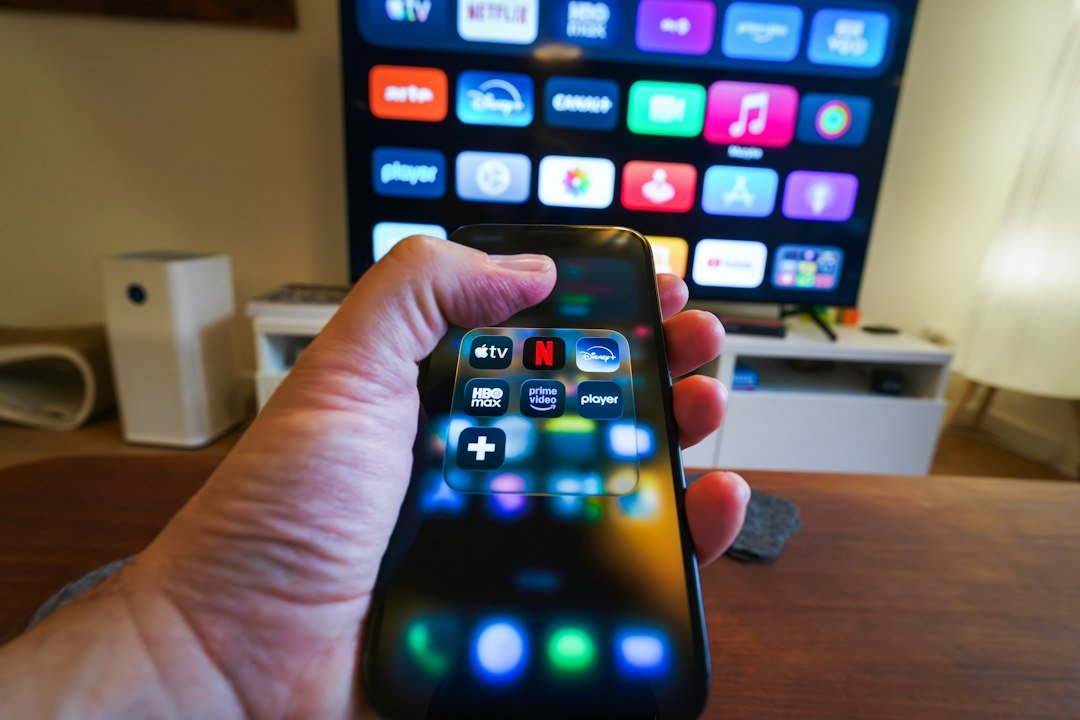
Do I have Google TV or Android TV? The quickest check is to press Home on the remote for the device that runs your apps. Look for the Google TV name, then confirm the exact model on the manufacturer’s website. If the settings say “Android TV OS,” keep checking. Google TV runs on Android TV OS too.
In this guide
1. Choose which device you want to identify
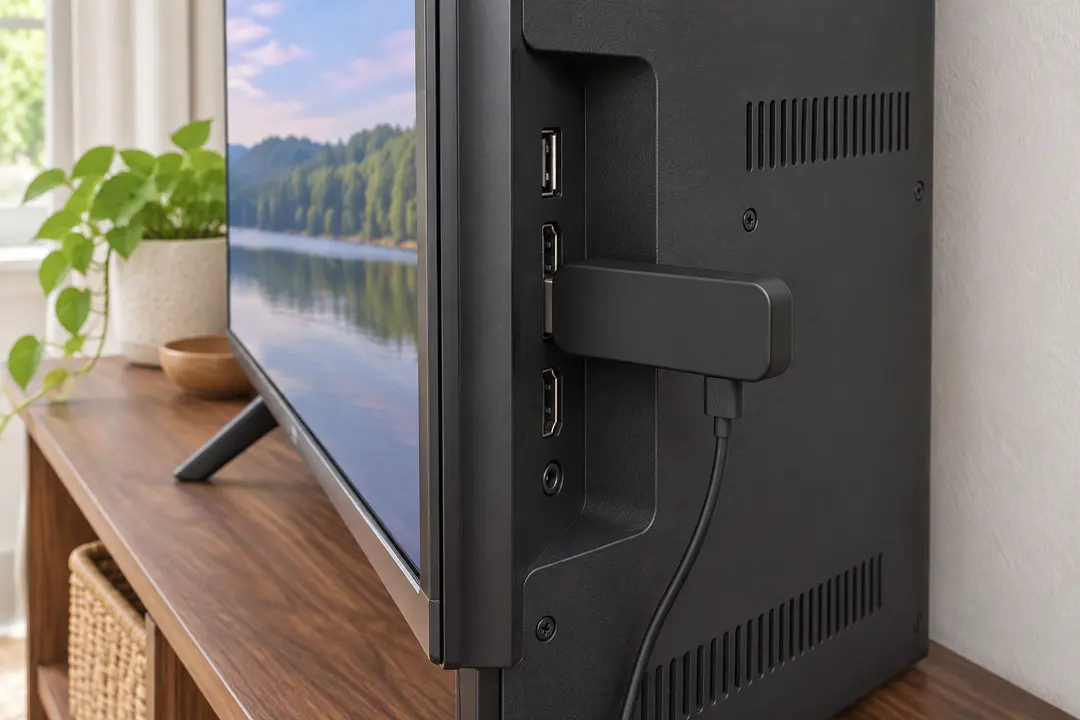
A television with a streaming stick plugged into HDMI can have two different Home screens. Before checking for Google TV or Android TV, decide which Home screen you use to launch the app. If you need to install an app on the stick, identify the stick. If you want instructions for the television’s built-in apps, identify the television.
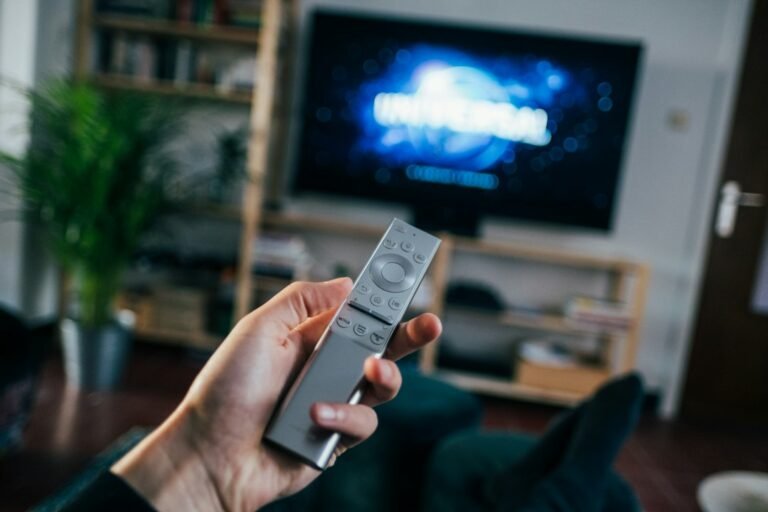
For example, suppose you normally watch movies on HDMI 2. Open the input list with the remote supplied with the television. Switch away from HDMI 2 to live TV, then open the television’s Home menu. Now switch back to HDMI 2 and open Home on the streaming remote. If the screens differ, you have found the two devices. Write down which one shows the app you use.
What if the same remote controls both devices?
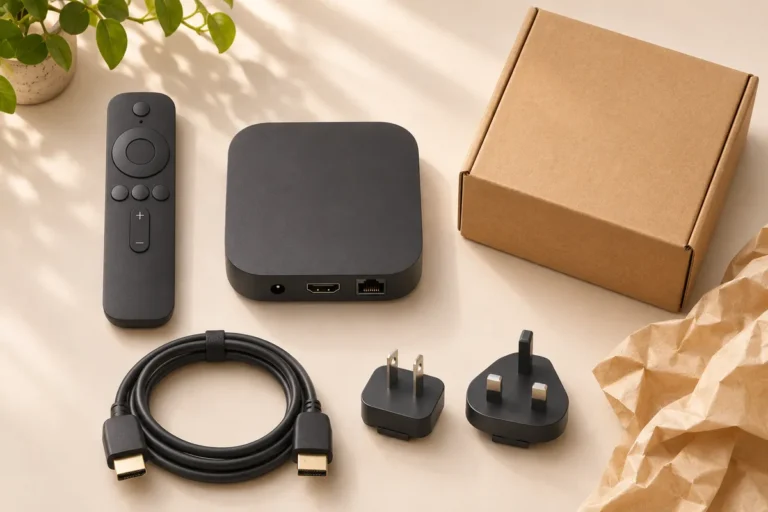
Use the input name as your starting point. Volume and power buttons may work on both screens, so those buttons tell you little about where an app is installed. While watching the app, open the television’s input selector and note the highlighted source. If it points to an HDMI port, follow the cable to the player. If the player is tucked behind a wall-mounted set, check the box or order confirmation for its name.
2. Check the Google TV or Android TV Home screen
Look for the words Google TV on the Home screen itself. On a compatible Sony television, the branding can appear near the top when you are signed in. If you skipped sign-in, Sony says a Google TV prompt can appear toward the bottom instead. You can check this without adding an account.
An older Sony Android TV Home screen may show a clock or a settings gear in the upper corner. Treat that as a clue. Netflix and YouTube tiles can appear on either platform. To distinguish Google TV or Android TV on a Sony set, compare the full Home screen with Sony’s examples. Sony provides screenshots you can compare with your own screen in its TV identification guide.
A setup banner appears instead of a profile
A Google TV set can start in basic TV mode. You can watch an antenna channel or a connected HDMI player and still have a Google TV setup banner on the built-in Home screen. You can use that banner to identify the TV before deciding whether to sign in. New app installation requires completing the Google TV setup. See Google’s guide to basic TV mode.
If a screenshot shows a Live tab and your television only shows Home and Apps, check the language and region before drawing a conclusion. Google documents several possible combinations of tabs. A missing tab alone is weak evidence when deciding whether you have Google TV or Android TV. See Google’s explanation of Home screen tabs.
3. Confirm the platform with your model number
Find the full model code on the label on the back of the TV, on the original box, or in the device information screen. Use the box or settings if the label is hard to reach. For an HDMI stick, use the player’s own model details. A TV model code will only identify the television.
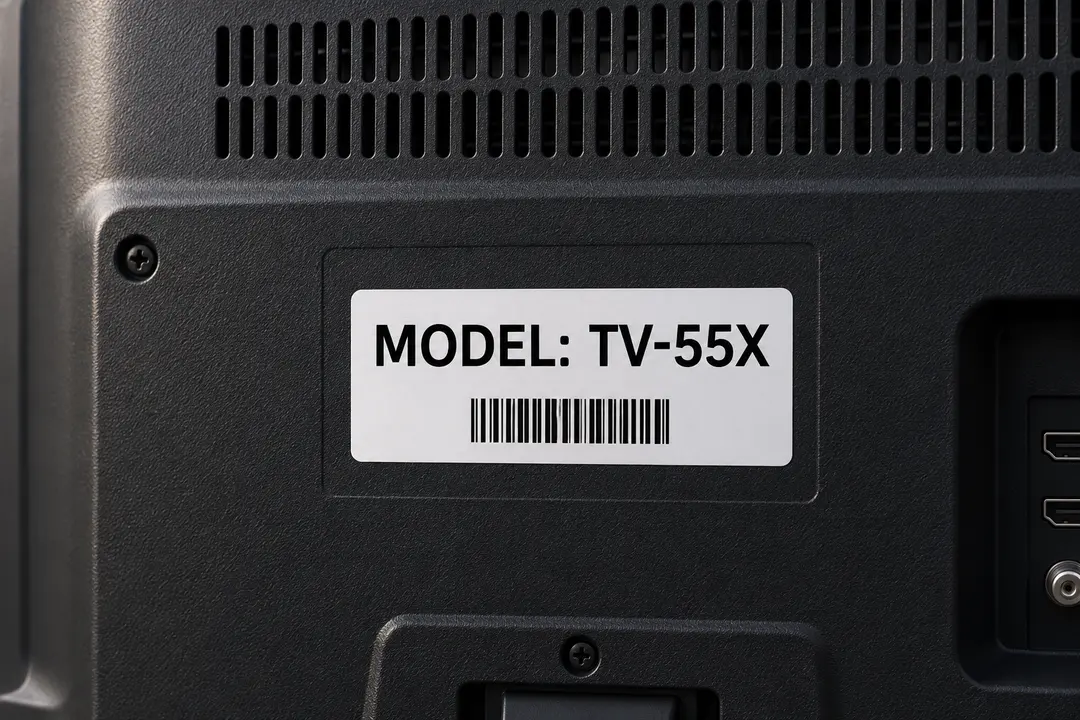
Search the manufacturer’s support site for the complete code, including its final letters. Open the product overview and specifications for your region. Look for Google TV or Android TV in the product overview. The operating system listed in the specifications can be the same for both.
The product page calls it Google TV. Use Google TV instructions for profiles, recommendations and Home screen settings. An Android TV OS version number in Settings is consistent with that identification.
The manufacturer calls it Android TV. Start with the Android TV instructions for that model. If a tutorial asks you to open a Google TV profile menu that you cannot find, check the model’s own help page for the equivalent setting.
The specification only says Android. That entry alone cannot tell you whether the device uses Google TV or Android TV. Open the model’s user guide and look for the section about Home or initial setup. If it names a different platform, use that platform’s support instructions for the built-in apps.
Which number should you search for?
Look for the field labeled Model, Model name or Model number. Copy letters, hyphens and the regional suffix exactly. A serial number identifies an individual unit, while a software build identifies a software release. Neither is a good search term for finding the product manual. If the support site suggests several similar televisions, match the complete code before following its menu instructions.
Common questions about identifying your TV
Why does my Google TV say Android TV OS in Settings?
Both names can be correct for one device. Think of the About screen as the place to check the software version and the Home screen as the place to identify the experience you use with the remote. If support asks for an OS version, give the number shown in About. If an app tutorial offers separate Google TV or Android TV steps, use the platform named in your model’s guide.
Can I identify my TV from the buttons on the remote?
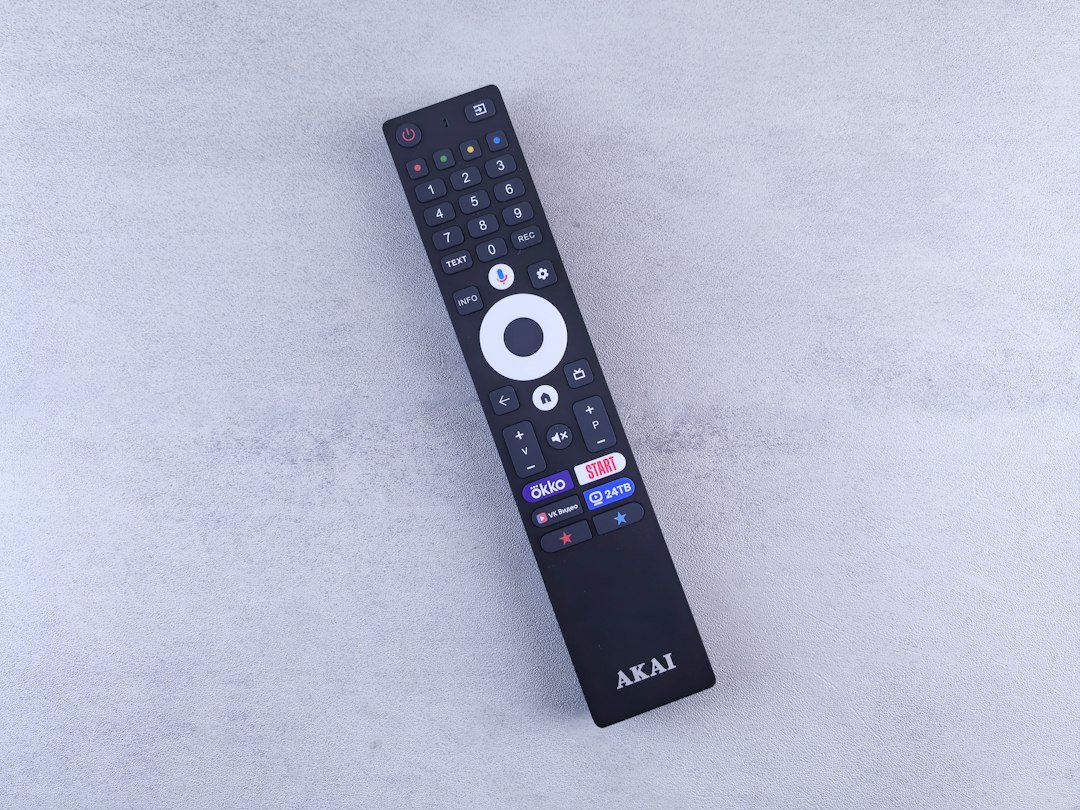
A Netflix button opens a service available on many televisions. A microphone button tells you the remote has a voice feature. Neither button tells you whether the television runs Google TV or Android TV. This is especially easy to miss with a second-hand television: a replacement remote can control the set even if its printed shortcuts differ from those on the original.
The TV will not turn on. Can I still check?
Yes. Find the model on the carton, purchase invoice or order history. Entries such as “55-inch 4K Smart TV” are too broad, so open the order details and look for the manufacturer’s product code. Enter that code on the manufacturer’s regional support site. You can check whether the set runs Google TV or Android TV from your phone, even with the television unplugged. If you are identifying a separate player, use the receipt or packaging for that player.
What to do once you know
Save a short note with the device, input and platform, for example “Living room HDMI 2 — streaming box — Google TV.” The next time an app needs troubleshooting, you can go straight to the right device. For a new player, follow our Android TV box setup guide. If you’re choosing Google TV or Android TV for a second room, see our Android TV and Google TV comparison.
2 comments
Share your experience, ask a question or add a useful tip for other Box4TV readers.