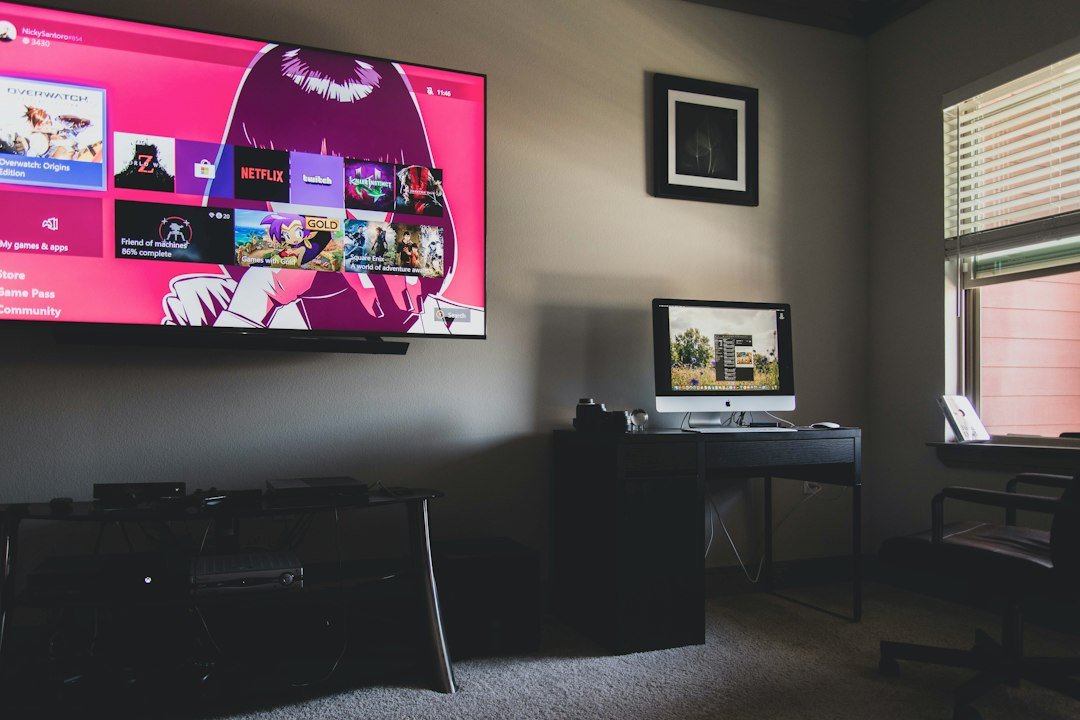
An Android TV box no signal message is easiest to diagnose with the TV’s own remote. Press Input or Source, then select the HDMI number printed beside the socket your box uses. If the home screen appears, you’re done. If the TV still says “No Signal,” leave it on that input and work through the checks below, changing one thing at a time.
First, notice who is displaying the message. If you can open the box’s Settings or browse its apps, the TV is already receiving a picture from the box. A black screen inside one streaming app calls for a different test from a TV that never shows the box’s startup logo.
Jump to the symptom table, the seven HDMI checks, or common questions.
Android TV box no signal symptoms at a glance
| What you see | What to try first |
|---|---|
| The TV says “No Signal” as soon as you select HDMI. | Match the input number to the socket and check power to the box. |
| The box logo appears, then the TV loses the signal. | Connect the box directly to the TV. If it works on another screen, check its display settings there. |
| The home screen works, but one app goes black. | Try a second title and a different app before changing cables. |
| Even the TV’s own settings menu is invisible. | Check whether the TV can display its menus with the box disconnected. |
7 simple checks for an Android TV box no signal message
1. Match the physical HDMI port to the input menu
Trace the cable from the box to the television. Read the number next to the socket, especially if the TV has ports on both its side and back. Use the television’s remote to select that exact input. A custom label such as “Game” may refer to a port that previously held a console.
If several cables look identical, take a photo of the sockets before moving anything. It gives you an easy way to restore a soundbar or game console to its original connection.
2. Check how the box gets power
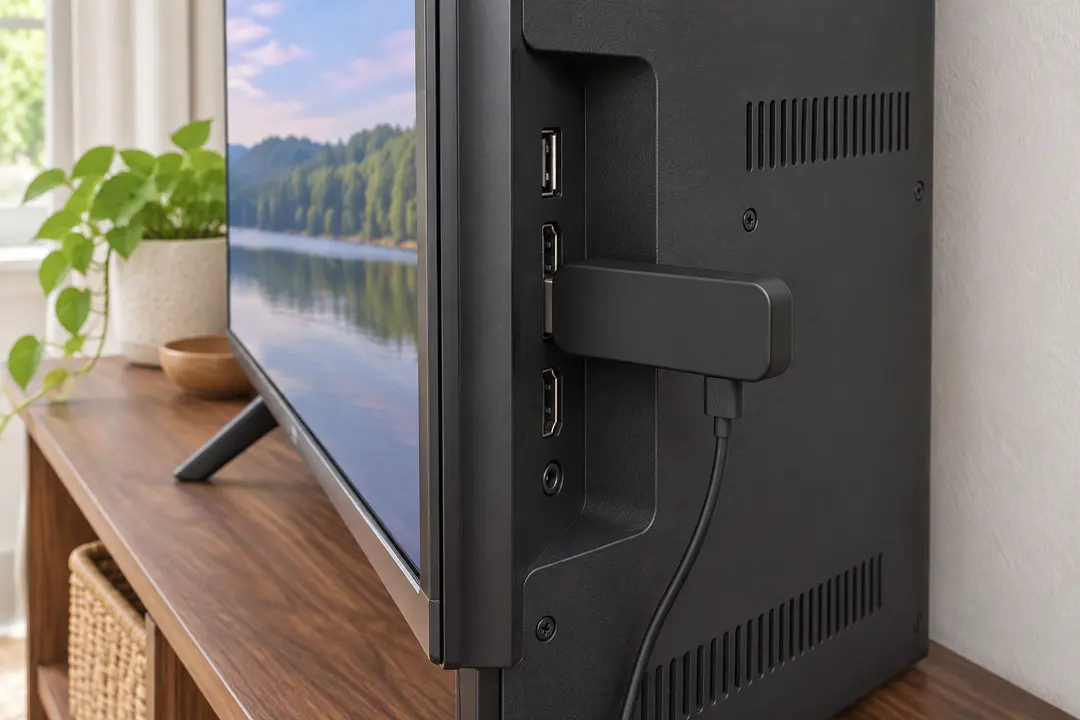
Follow the power lead separately from the HDMI connection. A stick can sit firmly in the television while its USB power lead is loose. For a box with a separate adapter, check both the plug at the box and the outlet end. Use the power supply specified for your model.
For Chromecast with Google TV and Google TV Streamer, Google recommends the supplied adapter and cable. If your device actually displays a low-power warning, follow Google’s low-power troubleshooting guide. Seeing that warning also tells you that the TV can display a picture from the device.
3. Restart the box from its power connection
Disconnect power from the box. For Google’s streaming devices, wait one minute before reconnecting it. Keep the TV on the selected input and watch what happens during startup. Removing only the HDMI lead interrupts the picture but can leave the box running.
Make a note of the last thing you see. “No logo at any point” and “logo for five seconds, then loss of signal” are different observations you can use in the later tests. Google lists its device-specific sequence in its black screen and no signal guide.
4. Connect the streaming device directly to the television
If the picture normally passes through an HDMI switch, receiver or soundbar, temporarily connect the box straight to a TV input. Select the new input and try to reach the home screen. On this test, getting a picture is enough, even if sound now comes from the television.
If direct connection works, put one component back at a time. For example, add the switch first and test again before reconnecting the receiver. This tells you which change brings the fault back and avoids replacing the box on a guess.
5. Swap one HDMI cable or port at a time
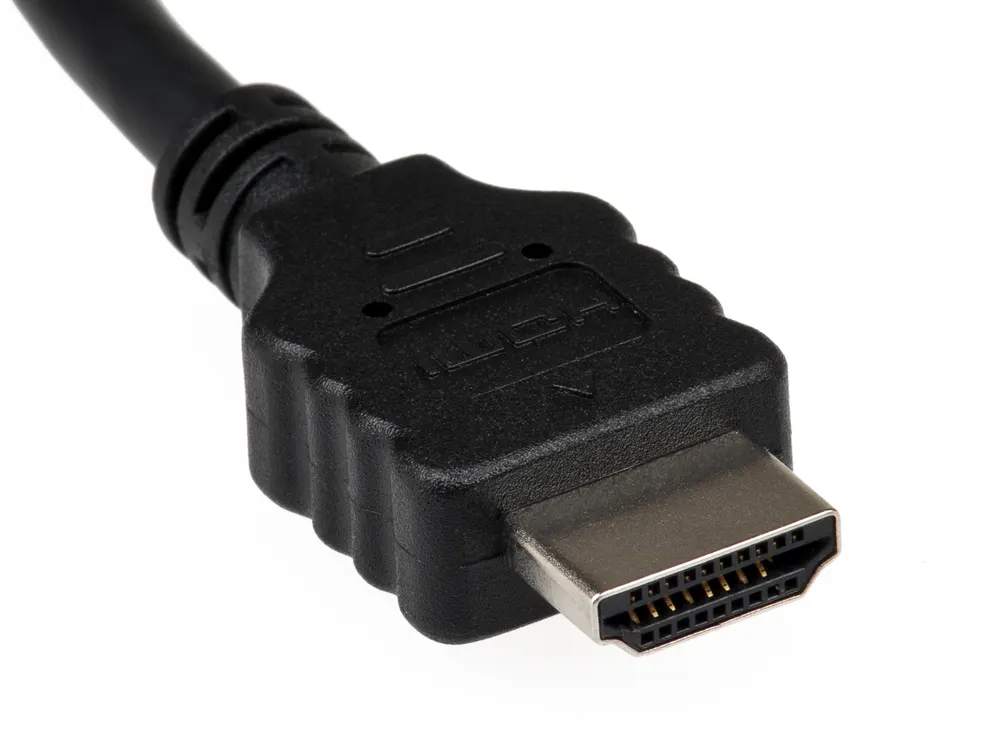
For a box with a detachable HDMI cable, use a cable that is currently carrying a picture from another device. Start on the original TV port. If that makes no difference, leave the test cable in place and try a second port. Select its number with the remote each time.
A stick with an integrated HDMI plug changes this test slightly. Try a different accessible port, and temporarily remove any optional extender if the stick fits comfortably without it. Avoid forcing the plug into a recessed socket.
6. Test the same box on a second display
Move the box, its power supply and the test cable to another television or HDMI monitor. If the home screen appears, check the video output options. If available, try automatic resolution or a mode explicitly supported by the first TV. Then reconnect the box to the original screen.
This is especially helpful after moving a box from a newer TV to an older one. Avoid navigating display settings blindly. If the device works on the second screen, you have a visible menu and a way back if the first choice fails.
7. Cross-check the result before replacing anything
Connect a device known to work, such as a console, to the original TV using the same input and test cable. If both devices fail there but work on another input, investigate the original TV port. If only the box fails across two displays while the other device works, note the box model, power supply and startup behavior before contacting its manufacturer.
Once the picture returns, the Box4TV Android TV box setup guide walks through the remaining setup. If the menus look different from the instructions, use these checks to identify Google TV or Android TV.
Common questions about a missing HDMI signal
Can Wi-Fi cause my TV to show “No Signal”?
With an external box connected over HDMI, the television can display the box’s menus even when the internet is down. If the home screen appears and only online videos fail, test the network or streaming app. If the TV itself reports no HDMI signal, start with the input, power and physical connection.
Why does the home screen work but a movie goes black?
Try another title in the same app, then try another app. If playback alone fails through a receiver or switch, repeat the same title with the box connected directly to the TV. Record whether you hear audio or see an error code. Those details help distinguish an app-specific issue from a problem with the video connection during playback.
Should I factory-reset an Android TV box with no signal?
Leave a factory reset until you have checked the signal path and consulted the instructions for your exact model. A reset erases device settings and accounts, and the setup screen still needs a working HDMI connection. A known-good cable, a second input and a comparison device will usually give you more diagnostic information first.
Join the discussion
Share your experience, ask a question or add a useful tip for other Box4TV readers.