A slow Smart TV can turn a quick Netflix session into a frustrating wait. Apps take too long to open, menus stutter, videos buffer, and sometimes the entire interface seems to freeze. The good news is that you often do not need to replace your television.
In this guide, Box4TV walks you through 12 practical ways to make a Smart TV faster, from simple restarts to network and storage improvements.
Why Does a Smart TV Get Slow?
Smart TVs are essentially computers built into televisions. They use a processor, memory, internal storage, an operating system, apps, and an internet connection. Over time, limited free storage, outdated software, background apps, accumulated temporary data, or a weak Wi-Fi connection can make the experience feel slower.
1. Fully Restart Your Smart TV
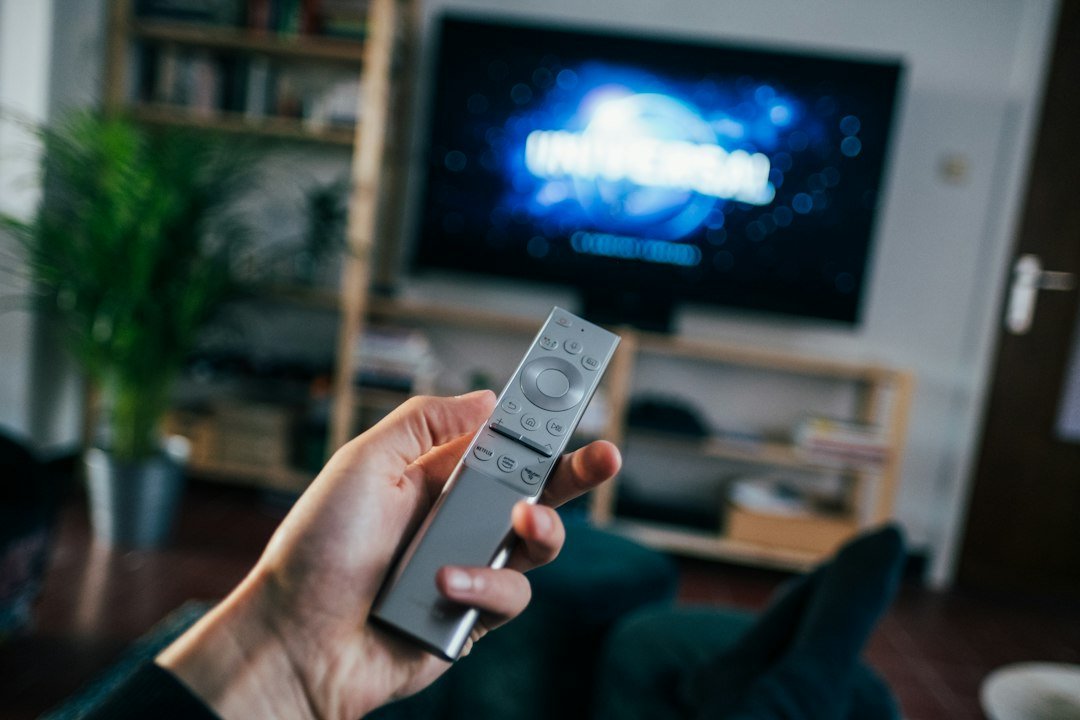
Start with the simplest fix. Putting a TV into standby is not always the same as rebooting it. Turn the TV off, unplug it from power for around 30 to 60 seconds, reconnect it, and switch it back on. A full restart can clear temporary processes and free system resources.
2. Remove Apps You No Longer Use
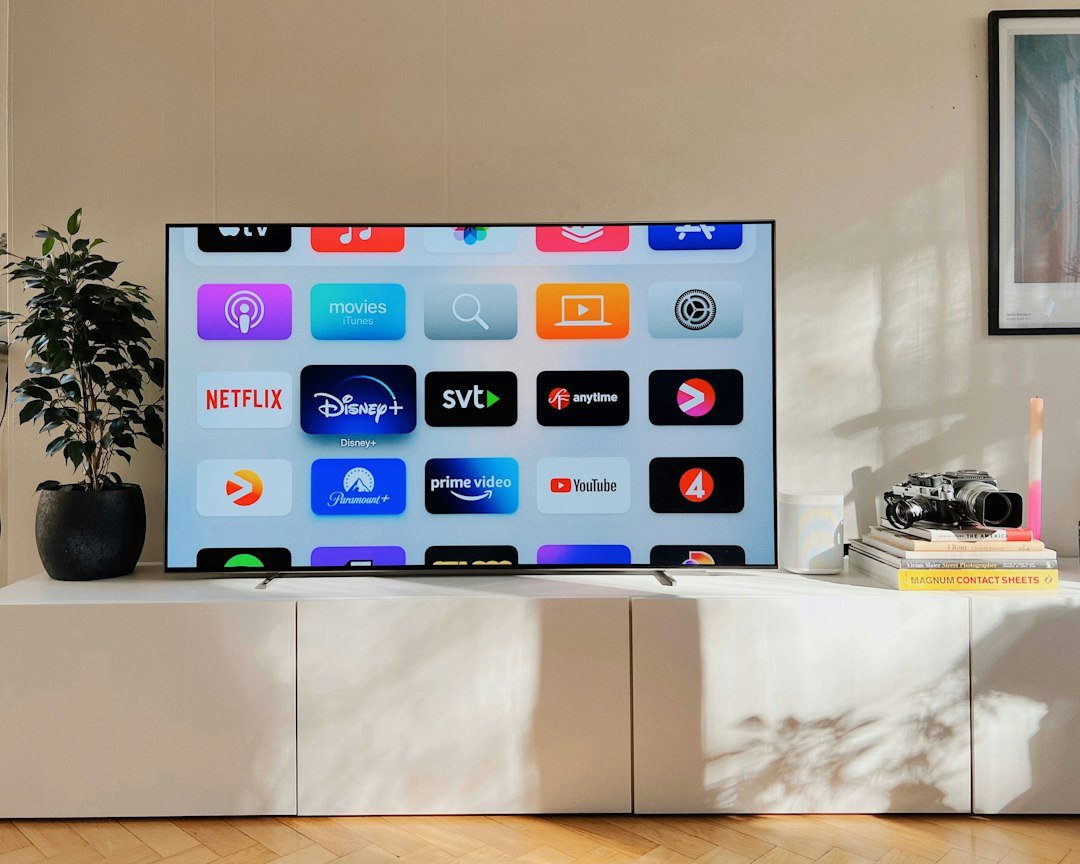
Smart TVs usually have much less storage than phones or computers. If you have installed many streaming services, games, utilities, and media apps, remove the ones you no longer use. Keeping some free storage available can help the system operate more smoothly.
3. Clear App Cache When Available
Some TV platforms allow you to clear cached or temporary app data. This can help when one particular app has become unusually slow or unstable. Look under Settings, Apps, Storage, or a similar menu. The exact location depends on your TV platform.
4. Update Your TV Software
Manufacturers release firmware and operating-system updates to fix bugs, improve compatibility, patch security issues, and sometimes improve performance. Open your TV settings and check for a system or software update. Keep important streaming apps updated as well.
5. Check Your Internet Connection
If menus feel fast but streaming constantly buffers, the TV itself may not be the problem. Test your internet connection and compare it with another device in the same room. Slow Wi-Fi, interference, or a distant router can make streaming apps appear sluggish.
6. Use Ethernet When Possible
A wired Ethernet connection can provide a more consistent connection than congested or weak Wi-Fi. If your TV and router both support Ethernet and running a cable is practical, it can reduce connection instability during streaming.
7. Improve Your Wi-Fi Signal
If Ethernet is not convenient, improve the wireless connection. Move the router closer when possible, avoid hiding it behind large furniture, and reduce physical obstacles. Depending on your router and TV, changing between the 2.4 GHz and 5 GHz bands may also improve the connection.
8. Close or Stop Problem Apps
On platforms that support app management, closing or force-stopping an app can resolve temporary slowdowns. If one streaming app repeatedly freezes while everything else works normally, restart or reinstall that app before changing the rest of your setup.
9. Disable Features You Do Not Need
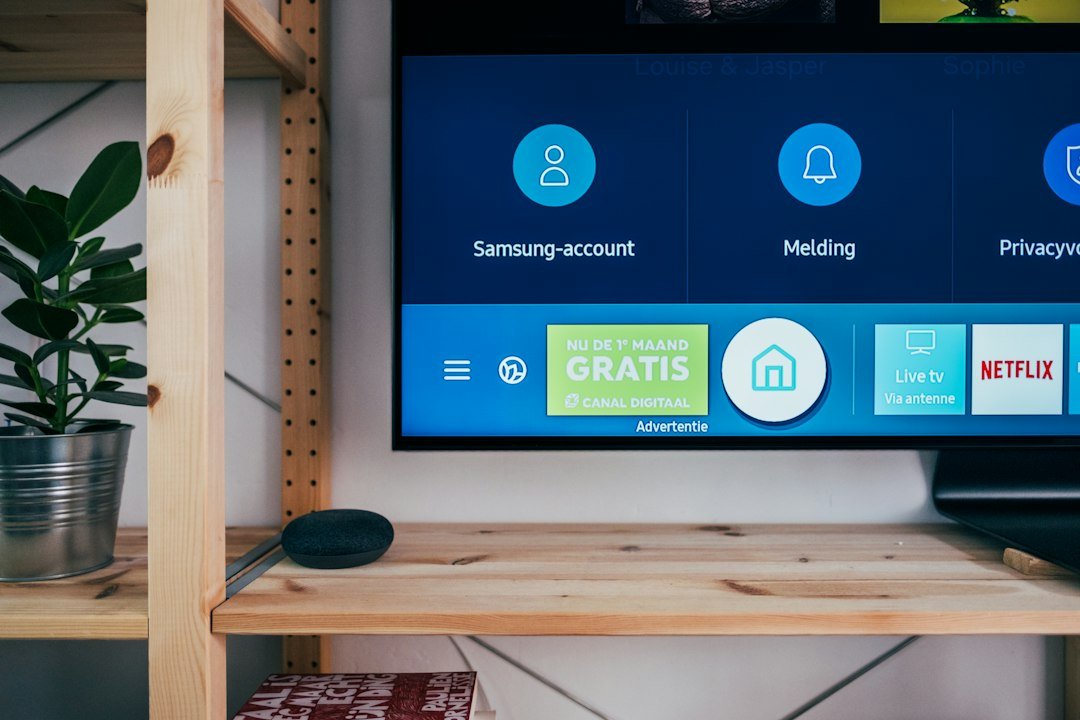
Some televisions include recommendations, previews, voice features, animations, content discovery services, and other background functions. Where your TV provides controls for them, disabling features you never use may reduce unnecessary activity and simplify the interface.
10. Restart Your Router
When streaming performance suddenly becomes poor across multiple devices, restart the router as well as the TV. This will not fix every network problem, but it is a quick troubleshooting step before changing more advanced settings.
11. Consider a Dedicated Streaming Device
If the television panel still looks good but its built-in Smart TV hardware is old, a modern streaming stick or TV box can be a practical upgrade. You can keep using the same screen while moving apps and streaming to newer hardware. Before buying, compare supported resolution, HDR formats, app compatibility, connectivity, storage, and software support.
12. Factory Reset as a Last Resort
If your TV remains extremely slow after trying the previous steps, a factory reset may help resolve persistent software problems. Treat this as a last resort because it removes accounts, apps, preferences, network settings, and other customizations. Check the manufacturer’s instructions for your exact model before proceeding.
When Is It Time to Upgrade?
If apps are no longer supported, the interface remains slow after troubleshooting, or the TV cannot handle the streaming features you need, you have two main choices: add an external streaming device or replace the television. An external device is often worth considering first when the display itself is still in good condition. Compare your options in our best streaming devices guide or see the best Android TV boxes for 2026.
Quick Smart TV Performance Checklist
- Restart the TV completely.
- Delete unused apps.
- Clear temporary app data when supported.
- Install system and app updates.
- Test your internet connection.
- Try Ethernet or improve Wi-Fi coverage.
- Restart or reinstall problematic apps.
- Consider an external streaming device for older TVs.
Frequently Asked Questions
Why is my Smart TV suddenly so slow?
A sudden slowdown can be caused by a problematic app, an unstable internet connection, temporary system processes, low storage, or a recent software issue. Restarting both the TV and router is a useful first diagnostic step.
Does deleting apps make a Smart TV faster?
It can help when internal storage is very limited or nearly full. Removing apps you never use also makes the TV easier to manage.
Will a streaming box make an old Smart TV faster?
A streaming box does not make the television’s built-in operating system faster. Instead, it runs streaming apps on separate hardware, which can provide a smoother experience when the TV’s original smart platform has become outdated.
Final Thoughts
You do not necessarily need a new television just because its smart interface feels slow. Start with a full restart, clean up unused apps, install updates, and check the network. If the built-in platform is simply too old, an external streaming device can extend the useful life of a good display.
For more practical streaming tutorials, device comparisons, and TV box guides, explore the latest guides on Box4TV.

2 comments
Share your experience, ask a question or add a useful tip for other Box4TV readers.