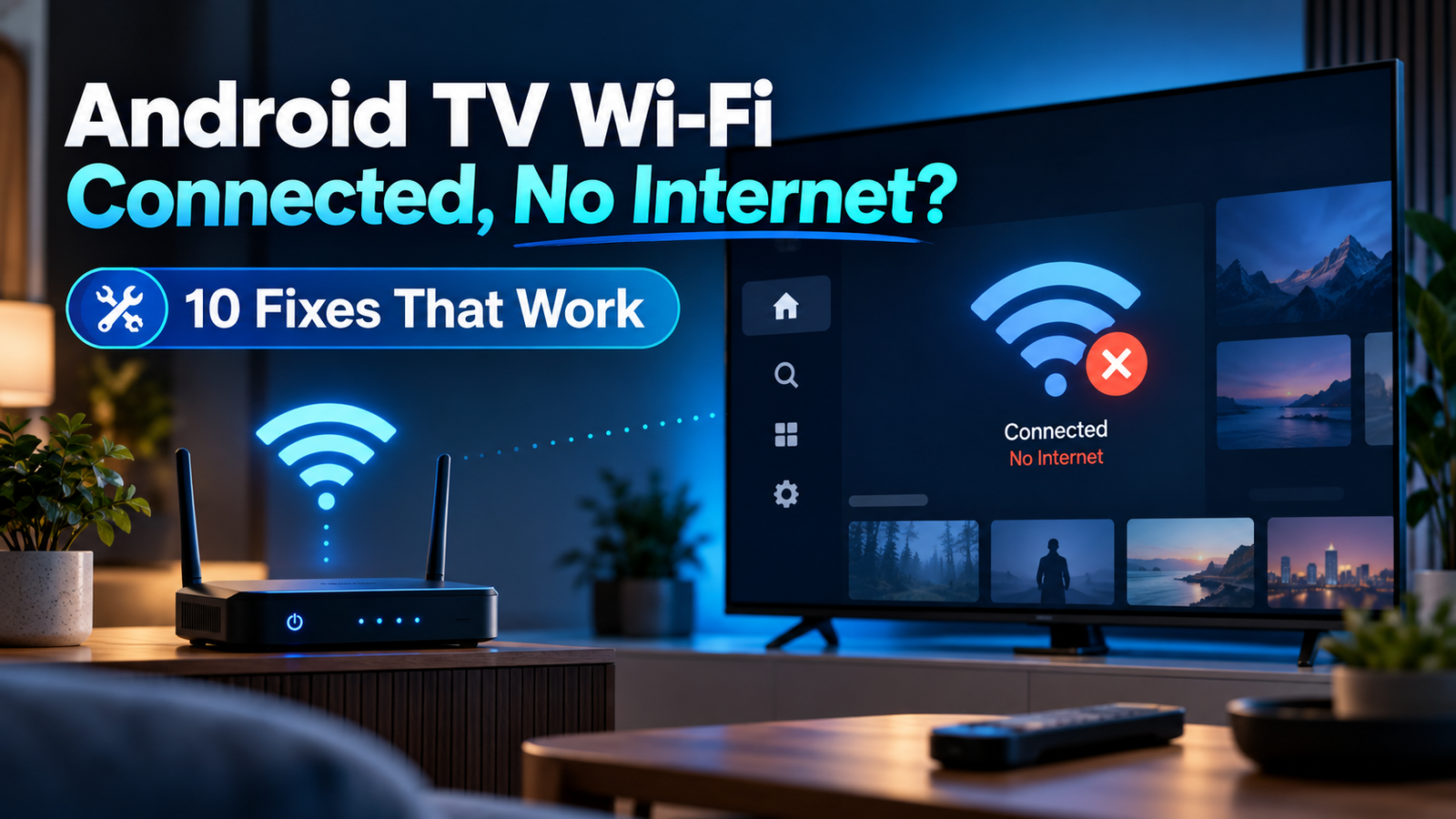
Is your Android TV connected to Wi-Fi but showing “No Internet”? You may see a strong wireless signal while Netflix, YouTube, Google Play, or other streaming apps refuse to load. This usually means the TV is connected to your router but cannot reliably reach the internet.
The good news: you can often fix this without replacing your TV box or resetting everything. Work through the checks below in order, starting with the fastest and least disruptive options.
Quick checklist: what to try first
- Check whether your phone can browse the internet on the same Wi-Fi network.
- Restart the TV or streaming box.
- Restart the modem and router.
- Forget the network, then reconnect with the correct password.
- Check automatic date and time and the network’s IP settings.
Important: Menu names vary among Android TV, Google TV, Xiaomi TV Box, NVIDIA Shield, and other devices. These steps focus on devices running Android TV or Google TV, not Amazon Fire TV or Roku.
Why does Android TV say “Connected, no internet”?
A Wi-Fi connection and an internet connection are not the same thing. Wi-Fi connects your television to a local wireless router; your router still needs a working connection to your internet provider. Incorrect network settings, DNS problems, a router fault, weak signal, and occasional software bugs can also interfere.
1. Check whether the internet works on another device
Connect your phone or laptop to the same Wi-Fi network as the TV. Turn off cellular data on your phone before testing so the result is meaningful. Open two or three websites.
- Nothing works: the problem is probably upstream of the TV, such as the modem, router, or internet service.
- Other devices work: continue with the TV-specific steps below.
- Only one streaming app fails: skip to step 8; the app, rather than Wi-Fi, may be the cause.
2. Fully restart your Android TV or Google TV device
Open Settings → System → Restart if that option is available. On some models, press and hold the remote’s power button to find Restart. If the TV is unresponsive, turn it off and disconnect power briefly before reconnecting. Do not simply switch inputs or put the TV into standby.
Once it finishes starting, reconnect to Wi-Fi and try YouTube or another trusted service.
3. Reboot your modem and router
Unplug your modem and router from power, then reconnect them following the manufacturer’s instructions. If you have separate devices, allow the modem to finish reconnecting before restarting the router. Wait until the internet indicator returns to its normal state, then test your TV again.
A temporary router glitch or exhausted connection can produce a “connected without internet” message even when signal strength looks excellent.
4. Forget your Wi-Fi network and connect again
On most Android TV or Google TV devices:
- Open Settings → Network & Internet.
- Select your current Wi-Fi network.
- Choose Forget network (wording varies by device).
- Select the network again and enter its password carefully.
- Wait for the connection to complete and test a streaming app.
Make sure you have the Wi-Fi password before forgetting the network. If your router offers separate 2.4 GHz and 5 GHz names, test the other band as well. The 2.4 GHz band often reaches farther; 5 GHz can be faster at shorter distances.
5. Check date and time settings
Incorrect time settings can cause secure websites and streaming services to reject connections, making an otherwise working network appear broken.
Look under Settings → System → Date & time and enable automatic date and time where available. Restart the device after changing it, then test again. On some devices you may need to set the correct time manually if automatic synchronization cannot initially connect.
6. Review IP address and DNS settings
Under the current network’s advanced settings, check whether IP assignment is set to DHCP / Automatic, unless your household intentionally uses static addresses. An incorrect static IP, gateway, or DNS value can prevent internet access.
For troubleshooting, restore automatic network settings first. If your router or ISP recommends a specific DNS configuration, follow their instructions. Avoid entering random network addresses: a change can make the connection worse.
7. Improve Wi-Fi signal or test Ethernet
Even when Wi-Fi appears connected, interference and packet loss can interrupt streaming. Try moving a separate streaming box closer to the router, avoiding metal cabinets, and reducing obstacles between the two devices. If both your streaming device and router support wired networking, connect an Ethernet cable temporarily.
If Ethernet works but Wi-Fi does not, focus on router band compatibility, wireless interference, and the TV’s wireless settings. If neither works while other devices do, continue troubleshooting the TV software.
For playback stuttering after the connection is restored, see our separate Android TV buffering troubleshooting guide.
8. Check apps, VPNs, and pending updates
If your browser or YouTube works but another app does not, the connection is probably functioning. Try these app-level checks:
- Restart the affected app and check for a service outage.
- Check for available app and system updates under Settings.
- If you use a VPN or custom proxy, temporarily disable it to test whether it is interfering.
- Clear the affected app’s cache in Settings → Apps, where supported.
Clearing app data is different from clearing its cache: it may sign you out and erase saved settings. Do not clear app data unless you understand the consequences.
9. Test a phone hotspot to isolate the cause
If your mobile plan allows it, enable your phone’s hotspot and temporarily connect the Android TV to that network. This test may use mobile data, so avoid heavy streaming during diagnosis.
- Hotspot works: investigate your home router, internet connection, DNS, or security filtering.
- Hotspot also fails: investigate the TV’s software and connection settings.
This is only a diagnostic test, not a recommendation to permanently stream over mobile data.
10. Reset network settings — and factory-reset only as a last resort
Some devices offer a dedicated network reset. If yours does, try it before considering a complete reset. A factory reset removes accounts, installed apps, and personalized settings, so make a note of your sign-in information and any important configurations before proceeding.
Because menus differ by manufacturer, follow the official device support instructions rather than blindly copying a reset sequence for a different model.
What if Android TV is connected to Wi-Fi but Netflix still won’t load?
First, determine whether other internet-connected apps work. If YouTube loads normally but Netflix fails, troubleshoot Netflix or its account rather than changing your entire network. Check for an app update and consult the service’s own help documentation. If every app fails, return to the internet and DNS checks above.
Frequently asked questions
Why does Android TV have full Wi-Fi bars but no internet?
The bars represent wireless signal strength to the router, not proof that your ISP connection or DNS is working. Test another device on the same Wi-Fi to identify where the problem starts.
Does changing DNS fix Android TV internet problems?
Sometimes, if DNS resolution is the cause. But it will not fix an ISP outage, weak wireless signal, or incorrect gateway. Automatic DNS is the safest starting point for most home networks.
Should I factory-reset my Android TV Box?
Not initially. Factory resets are disruptive and rarely the first thing to try. Test a different network and basic settings before considering a reset.
Is this guide also suitable for Google TV?
Yes. The troubleshooting principles apply to Google TV, although menu labels and available settings vary by model and software version.
Final verdict
When Android TV shows Wi-Fi connected but no internet, start by testing your router on another device, then restart your TV, reconnect to Wi-Fi, and check date, time, and automatic IP settings. Use a phone hotspot to separate a home-network problem from a device problem. Reserve a factory reset for the end of the process.
For more setup help, explore our Android TV Box setup guide and our Android TV performance fixes.
Official reference: Google TV Help Center provides manufacturer-specific assistance and current troubleshooting guidance.
Join the discussion
Share your experience, ask a question or add a useful tip for other Box4TV readers.